Introducing DotNetFunda.com on mobile http://m.dotnetfunda.com ! Be with DotNetFunda.com on the go !
Go to DotNetFunda.com
Twitter TwitterLinkedIn
YouTubeGoogle
 Online : 6611 |  Welcome, Guest!   Register  Login
Home > Articles > Visual Studio 2010 > Interactive ToolTip using Visual Studio 2010 Productivity Power Tool

Interactive ToolTip using Visual Studio 2010 Productivity Power Tool

1 vote(s)
Rating: 5 out of 5
Article posted by Kunal2383 on 7/22/2010 | Views: 4556 | Category: Visual Studio 2010 | Level: Beginner red flag


Visual Studio 2010 Productivity Power Tool is a set of extensions for Visual Studio 2010 Professional and above versions which actually improves productivity of developers. In this Tips & Trick, I will show you one nice extension behavior named “Interactive Tooltip”, which will make your development life easier.
Introduction

Visual Studio 2010 Productivity Power Tool is a set of extensions for Visual Studio 2010 Professional and above versions which actually improves productivity of developers. In this Tips & Trick, I will show you one nice extension behavior named “Interactive Tooltip”, which will make your development life easier.

image


If you didn’t install it till now, you can download it from Visual Studio Gallery. You can also download it directly from here. Read the complete post to know about it more.

Configuring Visual Studio 

Here I will show you how to use the Visual Studio 2010 Productivity Tool for better interactive tooltip for your code. Once installed, it will automatically activate this feature. But in any case, it is not configured or you modified it explicitly then follow the below steps to activate it again:

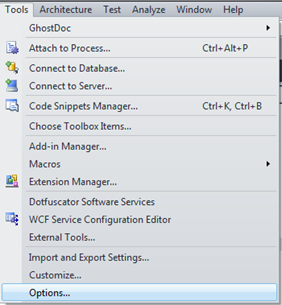
  • From Visual Studio 2010, go to Tools –> Options
image

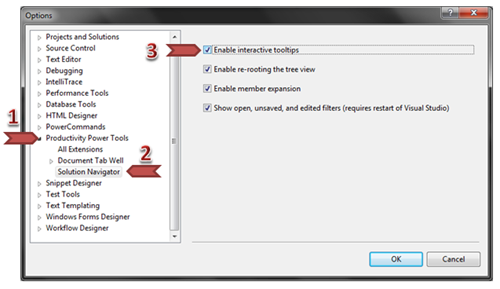
  • From the left pane, expand the “Productivity Power Tools” and select “Solution Navigator”.
image

  • Now in the right pane of the “Options” dialog check whether the CheckBox with title “Enable interactive tooltips” is checked. If it is not checked, just do it.

Working with the Interactive Tooltip

Once done, you will see the feature of the interactive tooltips in your code view.

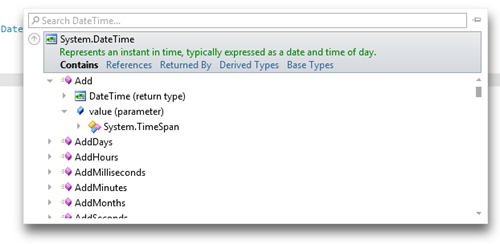
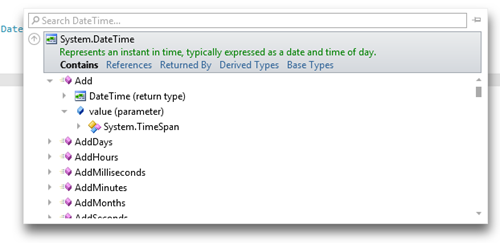
Open your code behind file and move your cursor on top of any class. You will see a ToolTip dropdown pops up on the screen as shown below:

image If you click the dropdown, you will see all the member variables, methods and properties of that class listed inside it.
image

You can now browse through the class implementation from the Tooltip as much as you want to drilldown. Have a look into the above snapshot. Not only that, you can search for any specific property, method or member variable like this:
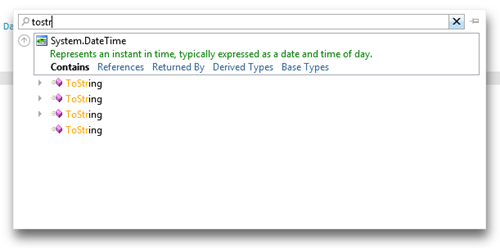
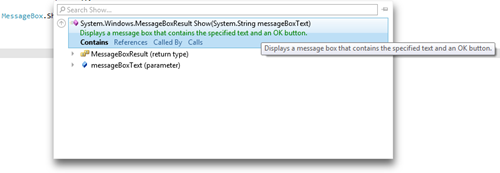
imageAnd, it will filter out the members of the class. This is not only for class, but for all properties, methods etc. too. Have a look into the following snapshot where it shows the Tooltip for the MessageBox.Show() method of my Silverlight application. It shows return type and also the parameter passed to the method.
 

image

I will keep posting various Tips with that, once I explore more. Till then enjoy coding. Smile Cheers…

If you like this article, subscribe to our RSS Feed. You can also subscribe via email to our Interview Questions, Codes and Forums section.

Page copy protected against web site content infringement by Copyscape
Found interesting? Add this to:


Please Sign In to vote for this post.

Experience:3 year(s)
Home page:http://www.kunal-chowdhury.com
Member since:Monday, March 01, 2010
Level:Starter
Status: [Member]
Biography:He is currently working as a Silverlight application developer. Has a very good skill over C#, XAML, Silverlight & WPF. He has a good working experience in Windows 7 application (including Multitouch) development.

During his professional career he worked in various technologies & delivered quality output. He never hesitates to take up challenges & work on the latest technologies in Microsoft platform.

He attended various software development competition & achieved different awards.

He is presently focusing on the RIA (Silverlight & WPF) & willing to become a Technology Specialist in Microsoft platform. Learning newer things, Blog posting & helping others in forums is one of his regular activity.

Specialties: Silverlight Application Development, WPF Application Development, Windows 7 Application Development
>> Write Response - Respond to this post and get points
Related Posts

This article explains the new Data Comparison tool in visual studio 2010.

In my last article on Coded UI Basic Walkthrough, we have seen the Record and Playback Mechanism of Coded UI. In this article I would like to discuss about the ‘Object Identification Mechanism of CodedUI’. How Coded UI identifies the objects present on the User Interface? Each object has some search properties associated with it. Along with this, if the object’s Technology is Web then it also has Filter properties associated with it. Coded UI uses these properties to identify the objects at runtime.

In my previous article on data driven approach in coded UI, we have discussed about how to use the CSV files and Xml files as the dataSource.

Providing the soutions for the common problems that occurs while performing Web Perfomance test in Visual Studio 2010

Visual Studio 2010 supports the extensibility of the IDE. We can develop our own extensions for VSTS 2010 and also a set of very useful extensions are available online. In this article, we will discuss about one of the extensions or Power Tools available as part of Visual Studio Gallery- Feature Builder.

More ...
About Us | Contact Us | The Team | Advertise | Software Development | Write for us | Testimonials | Privacy Policy | Terms of Use | Link Exchange | Members | Go Top
General Notice: If you found plagiarised (copied) contents on this page, please let us know the original source along with your correct email id (to communicate) for further action.
Copyright © DotNetFunda.Com. All Rights Reserved. Copying or mimicking the site design and layout is prohibited. Logos, company names used here if any are only for reference purposes and they may be respective owner's right or trademarks. | 5/21/2012 8:13:45 AM